How to Type an A With an Accent on Windows, Mac, and Chromebook
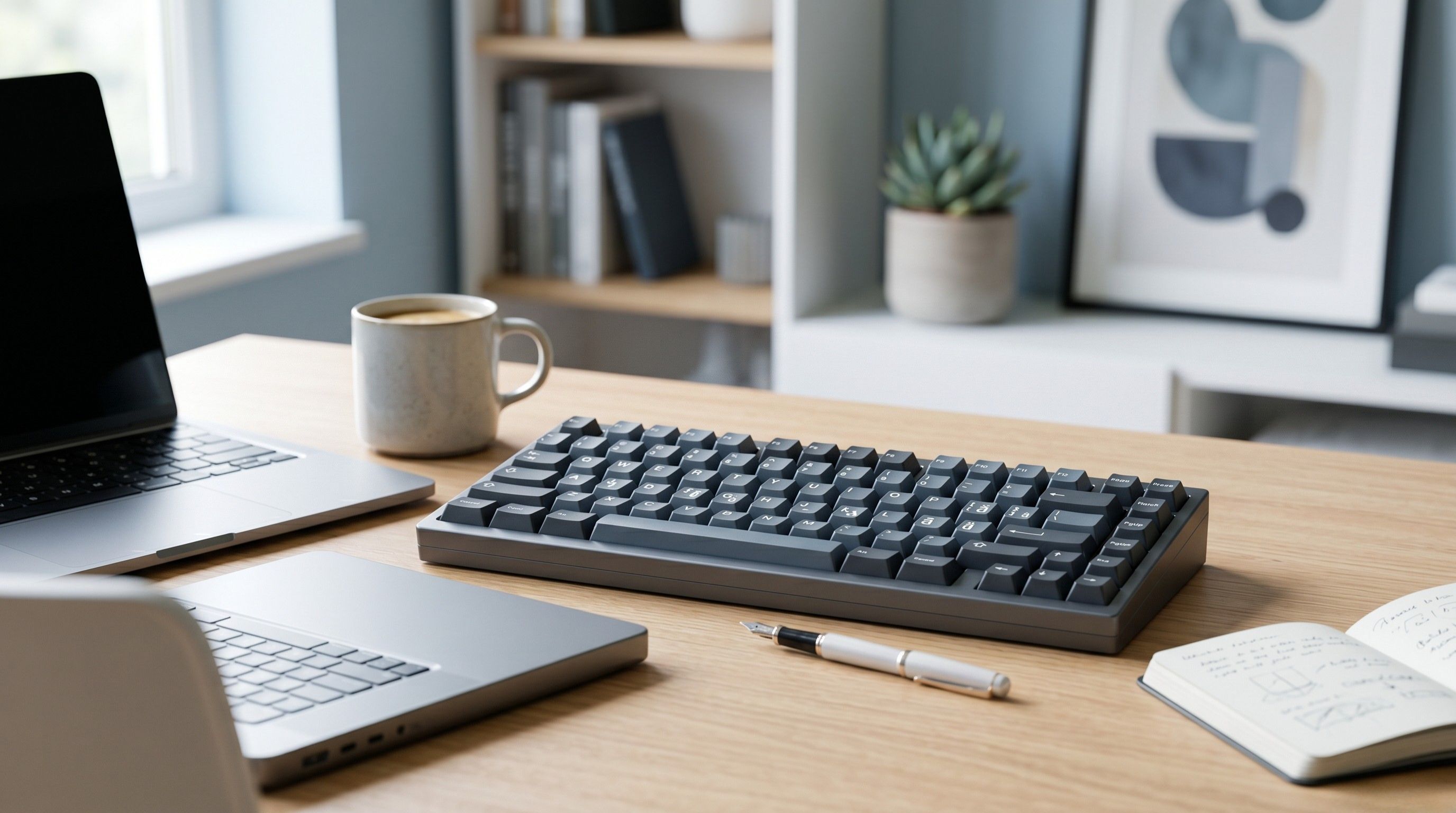
If you have ever searched for how to type an a with an accent, you were probably trying to produce one of several characters: á, à, â, ã, or ä. The exact version you need depends on the language, keyboard, and device you are using. The good news is that once you understand the logic behind accent entry, typing accented letters becomes quick and predictable rather than frustrating.
This guide walks through the easiest ways to type an accented a on Windows, Mac, and Chromebook. It also explains when each version of accented a is typically used, which is especially useful if you work with Romance languages. For example, if you are writing Portuguese and want to hear how those marked vowels fit into natural speech, the Portuguese accent generator can help you connect the keyboard symbol to the spoken sound. If you are working in Spanish, the Spanish accent generator provides a similarly useful comparison.
What Does “A With an Accent” Mean?
In everyday typing, people often say “an a with an accent” as if there is only one version. In practice, there are several. Different languages use different marks above or around the letter a, and each mark can change pronunciation, stress, or meaning. The most common accented forms are:
- á — acute accent
- à — grave accent
- â — circumflex
- ã — tilde
- ä — umlaut or diaeresis
That variety is one reason accent typing matters so much in language learning and international writing. The same base letter can carry different sounds and grammatical roles depending on the mark. In Portuguese, for example, an accented vowel can signal stress, openness, or nasalization, which is why tools like the Portuguese pronunciation practice page are useful beyond simple spelling. In French and Italian, different marks signal different sound relationships, and the French accent generator and the Italian accent generator can help reinforce how those written differences connect to actual pronunciation.
How to Type Á, À, Â, Ã, and Ä on Windows
Microsoft lists dedicated keyboard shortcuts for international characters in Office apps and related Microsoft environments. The logic is simple: you type the accent command first, then the letter. For an accented a, the most useful Windows shortcuts are the following:
| Character | Windows Shortcut | Accent Type |
|---|---|---|
| á | Ctrl + ', then a |
Acute |
| à | Ctrl + `, then a |
Grave |
| â | Ctrl + Shift + ^, then a |
Circumflex |
| ã | Ctrl + Shift + ~, then a |
Tilde |
| ä | Ctrl + Shift + :, then a |
Umlaut / Diaeresis |
Microsoft also notes that if you type extensively in another language, it may be more practical to switch to a different keyboard layout altogether. That advice matters if you frequently write in Spanish, Portuguese, French, or Italian rather than only adding occasional accent marks. If that is your workflow, pairing language-specific typing habits with the broader Accent Help resource library can make both spelling and pronunciation feel much more consistent.
How to Type an Accented A on Mac
Apple offers two main methods on Mac. The easiest is the press-and-hold method. In most apps, you can press and hold the a key, and an accent menu will appear with the available versions of that letter. You then choose the one you want. For many users, this is the fastest method because it does not require memorizing individual shortcuts.
Apple also supports dead keys, which are key combinations that enter the accent first and then apply it to the next letter you type. Apple’s documentation gives one clear example for ã: with the ABC keyboard layout, press Option + N to enter the tilde, then press a. Apple also recommends the ABC – Extended input source for people who type in multiple Latin-script languages regularly, since it makes diacritics and related marks much easier to manage across languages such as English and Italian. That makes it especially useful for multilingual writers moving between the French accent practice tool, the Italian accent practice tool, and other language resources.
How to Type an Accented A on a Chromebook
Chromebook offers several flexible ways to type accent marks. Google’s help documentation explains that on the English (US) with International keyboard, you can use accent-first combinations similar to Windows-style logic. For the letter a, the main options are:
| Character | Chromebook Shortcut | Accent Type |
|---|---|---|
| á | ', then a or AltGr + a |
Acute |
| à | `, then a |
Grave |
| â | Shift + 6, then a |
Circumflex |
| ã | Shift + `, then a |
Tilde |
| ä | Shift + ', then a |
Umlaut / Diaeresis |
Google also provides an accents menu: you can hold down the letter key, wait for the menu to open, then choose the desired accent. This is especially convenient for casual users who only need accented characters occasionally. If you switch between multiple input languages, Chromebook also allows you to enable additional keyboard languages and switch between them directly from the shelf. That setup becomes especially useful if you regularly type content inspired by language-specific pronunciation patterns, such as text you are testing against the Spanish accent generator or the Portuguese accent generator.
Which Accented A Do You Need?
Typing the symbol is only half the task. The other half is knowing which one belongs in the word you are writing. In Spanish, the most common accented a is á, which typically marks stress. In Portuguese, you may need á, à, â, or ã, depending on whether the word requires stress marking, vowel quality, grammatical contraction, or nasalization. French and Italian have their own systems as well. If your writing moves between languages, listening practice can reinforce those distinctions far more effectively than memorizing keyboard commands in isolation, which is why the French speech pattern tool, the Italian speech pattern tool, and the Spanish speech pattern tool are so useful alongside a typing guide like this one.
Best Method for Frequent Typing
If you only need an accented a occasionally, the quickest method is usually the built-in accent menu on Mac or Chromebook, or the Microsoft shortcut sequence in Office apps on Windows. If you type accented characters regularly, though, a dedicated international keyboard layout is usually the better long-term solution. Microsoft itself notes that frequent multilingual typing is often easier with a different keyboard configuration rather than repeated shortcut entry.
That is particularly true for language learners, editors, translators, and teachers. In those contexts, accuracy matters not just for appearance but for meaning, and moving fluidly between spelling and pronunciation becomes important. Writers working across multiple European languages may find it helpful to keep the Accent Help accent directory bookmarked so they can quickly move from typing questions to pronunciation practice without leaving the same broader resource ecosystem.
Common Mistakes When Typing an A With an Accent
- Using the wrong accent mark because all accented versions of a look similar at a glance.
- Forgetting that some systems require the accent first and the letter second.
- Assuming the same shortcut works identically on Windows, Mac, and Chromebook.
- Ignoring language-specific spelling rules, especially in Portuguese where á, à, â, and ã all have different functions.
- Trying to memorize every symbol at once instead of learning the few you actually use most often.
The easiest way to avoid these mistakes is to decide which language you are typing first, then use the shortcut that matches both your device and the correct letter form. If you are unsure which form belongs in the word, listening to a relevant accent example can help anchor the distinction. For that kind of practice, the Portuguese accent resource and the Spanish accent resource are especially practical starting points.
Quick Reference Summary
If you want the shortest possible answer to the question “how do I type an a with an accent,” here it is:
- Windows: use Microsoft’s accent shortcuts such as
Ctrl + ', thenafor á. - Mac: press and hold
ato open the accent menu, or use dead keys such asOption + N, thenafor ã. - Chromebook: use combinations like
', thenafor á, or hold the letter to open the accents menu.
Final Thoughts
Typing an a with an accent is much easier once you realize there is a system behind it. Windows, Mac, and Chromebook all provide built-in ways to enter accented characters, and each platform gives you at least one method that is fast enough for daily use. The real skill is not only knowing the shortcut, but knowing which accented form you need for the word you are writing.
If you want to go beyond typing and connect accented spelling to real-world pronunciation, it is worth exploring related language tools as well. The Portuguese accent generator, Spanish accent generator, French accent generator, and Italian accent generator all make those written marks feel more intuitive by linking them to natural spoken patterns. And if you want a broader overview of language and accent resources, the complete Accent Help accents collection is the most useful place to continue.